Run a tournament
Prepare the venue, entries and draw. Give your team a clear match-day plan.
Prepare the venue and event
- New to Rallyna? On an empty dashboard, choose Explore a sample tournament. It adds a private practice tournament with made-up players, published draws and matches to score. It sends no messages.
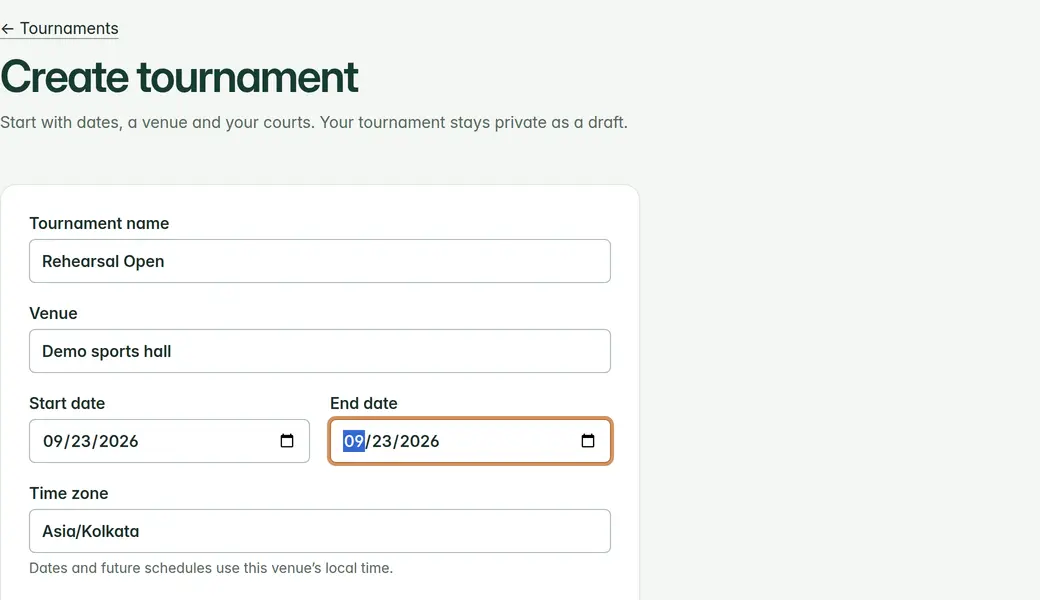
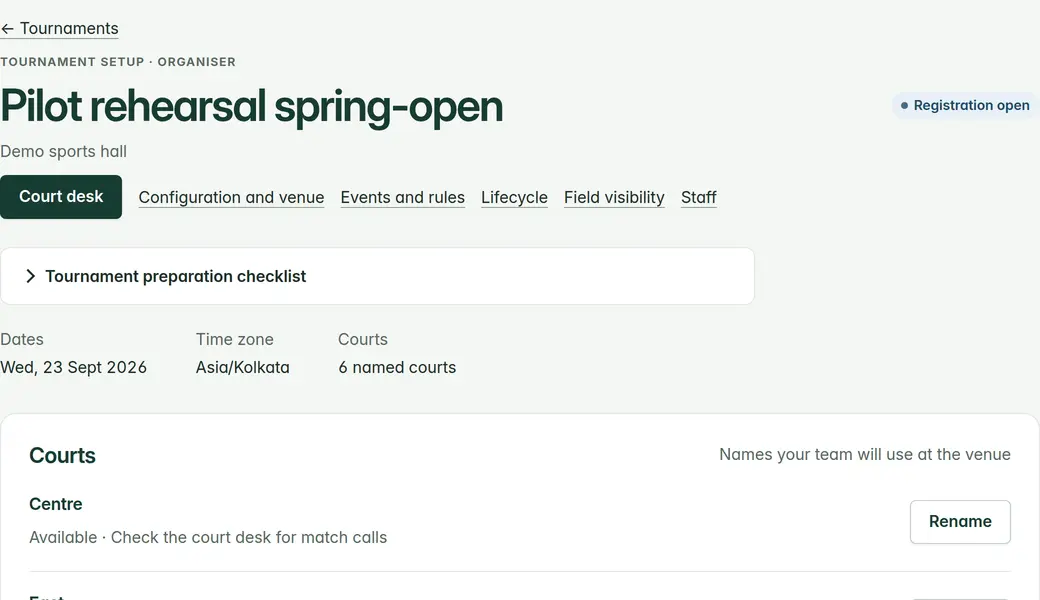
- Create a tournament in your workspace. Set its dates, venue, local time zone and court names.
- Under Configuration, set venue hours and closures. Add your singles or doubles event and review its rules before publication.
- Add participants and entries. For a CSV import, preview the rows and fix reported errors before confirming. A player record does not require a sign-in account.
Review entries, then publish the draw
- Review entry status and eligibility. Resolve incomplete pairs or other entry issues before preparing the draw.
- Prepare and inspect the draw. Publication records the chosen rules and draw; do not treat published competition data as a freely editable draft.
- Create the match plan, then assign courts and planned times. Check for participant overlaps, court conflicts and venue closures.
Invite your tournament team
- Open Staff. Invite a director, official or court-desk user with the email address they use to sign in.
- The recipient accepts under Account › Tournament invitations. Approve their tournament access after acceptance.
- Court desk staff run the court board but cannot change entries, draws or scores. Allocating an official does not grant scoring access: use Scoring access on the match to grant it.
- Remove or suspend access in Staff when someone leaves. Their old links and repeat submissions do not retain that authority.
Finish and publish
- Check submitted game scores and confirm results with an authorised account. Confirmation, not a desk status, completes the match and advances eligible winners.
- Use standings publication and tournament visibility controls to share results. Check the public page signed out before distributing the link.
- Use withdrawal controls if results must stop being public. For disputed or incorrect confirmed results, pause and involve the director; do not invent a replacement score to bypass a restriction.