Run the court board
Plan courts and times, check in players and keep match calls clear.
Before the first call
- Sign in with your invited email, accept the staff invitation and wait for organiser approval. Your assigned tournament opens its court board.
- Check the tournament name and time zone. The board updates by itself; the Live badge shows it is connected.
- Each court card shows its current match and one next step. Up next ranks ready matches, best first: tap the rank number to see why. Later rounds and finished matches are folded away.
Assign a court and time
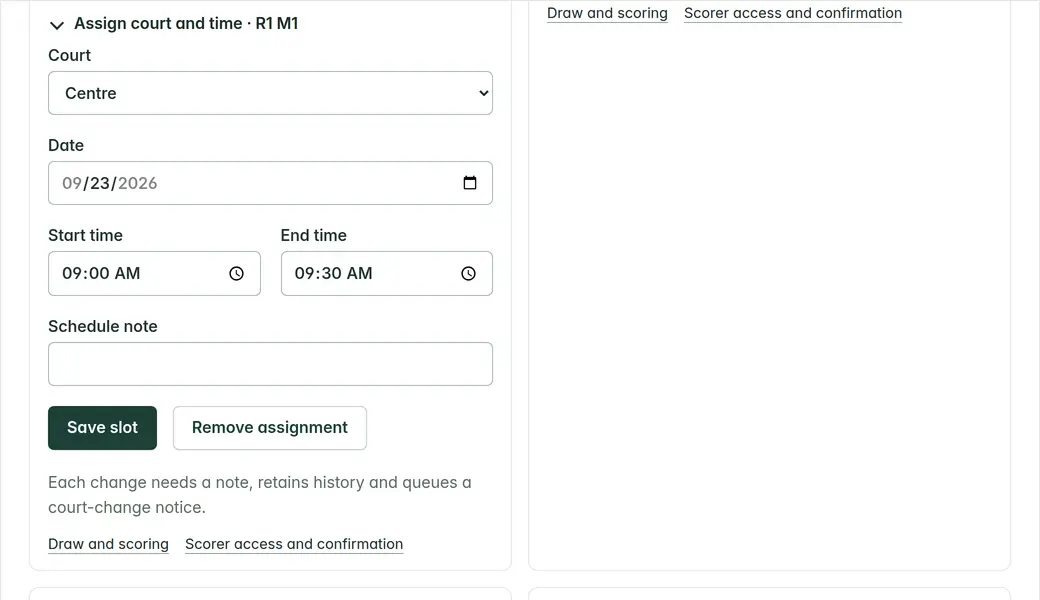
- Tap Assign court (or Match) to open the match page. Under Assign court and time, choose the court, date, start and end time, and add a note.
- If the save reports a conflict, check the court, both sides’ other matches, round order and venue hours. Change the plan rather than overriding the warning.
- Delay or cancel an active call before moving its slot. If someone else changed the match, the page shows it; review their change before trying again.
Check in, send to a court and start
- Tap Check in on a match when its players arrive. Players can also tap I am here on the live page; confirm them from the board.
- Tap Send on a top match to put it on a free court and call it in one step. Two people can never send matches to the same court.
- Tap Start play when the match begins. To delay a match or cancel its call, use Desk state on the match page and write a note: players receive it. Cancelling a call does not cancel the match or change a result.
- A Late marker means a side missed its deadline. Open the match: it shows the deadline, the grace and the recommended decision. You decide, with a reason; deferring a called match can send the next ready match to its court.
- You can allocate an official on the match page for coordination. Ask the organiser to grant scoring access separately.
- A match shows Completed once its result is confirmed. Court-board access alone cannot submit or confirm scores.
When a court has a problem
- Open Court problem under the courts, choose what happened and tap Close for that court. The match on it keeps its score.
- On the closed court, move the match to a free court, return it to the queue, or tap Court is available again to carry on there.
Know who has been notified
- Court changes, calls, delays and cancelled calls create notices for eligible staff and linked adult participants. Each notice keeps the recipients and text chosen at that time.
- Your notices is the in-app inbox. Email may still be queued, disabled or awaiting review; provider acceptance is not proof of delivery or reading.
- Contact unlinked participants and minors through your agreed venue process. Do not assume that an inbox entry means everyone saw the call.